TuringShot Complete Feature Guide
Live Screen Effects for Recording a Mac Tutorial
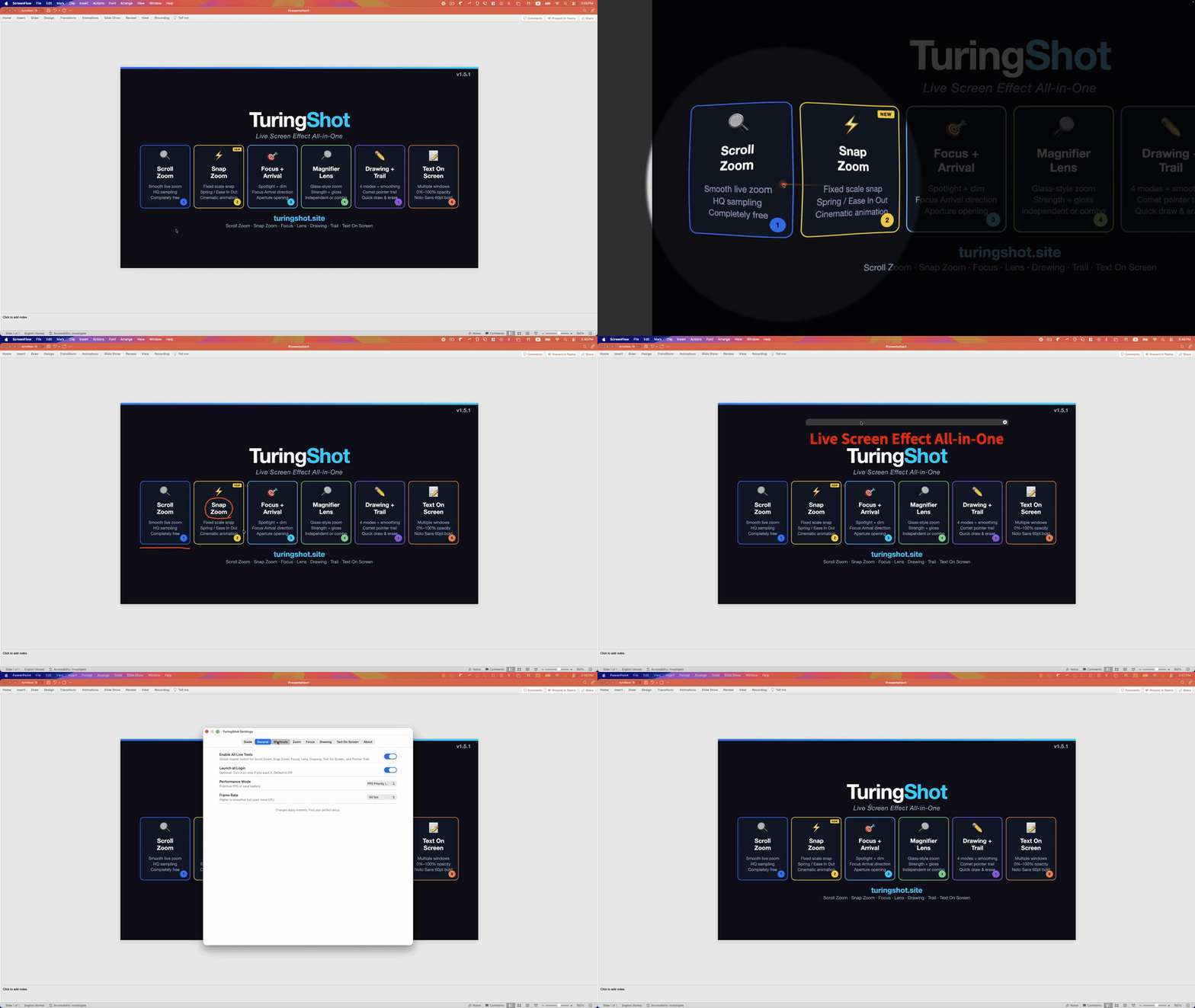
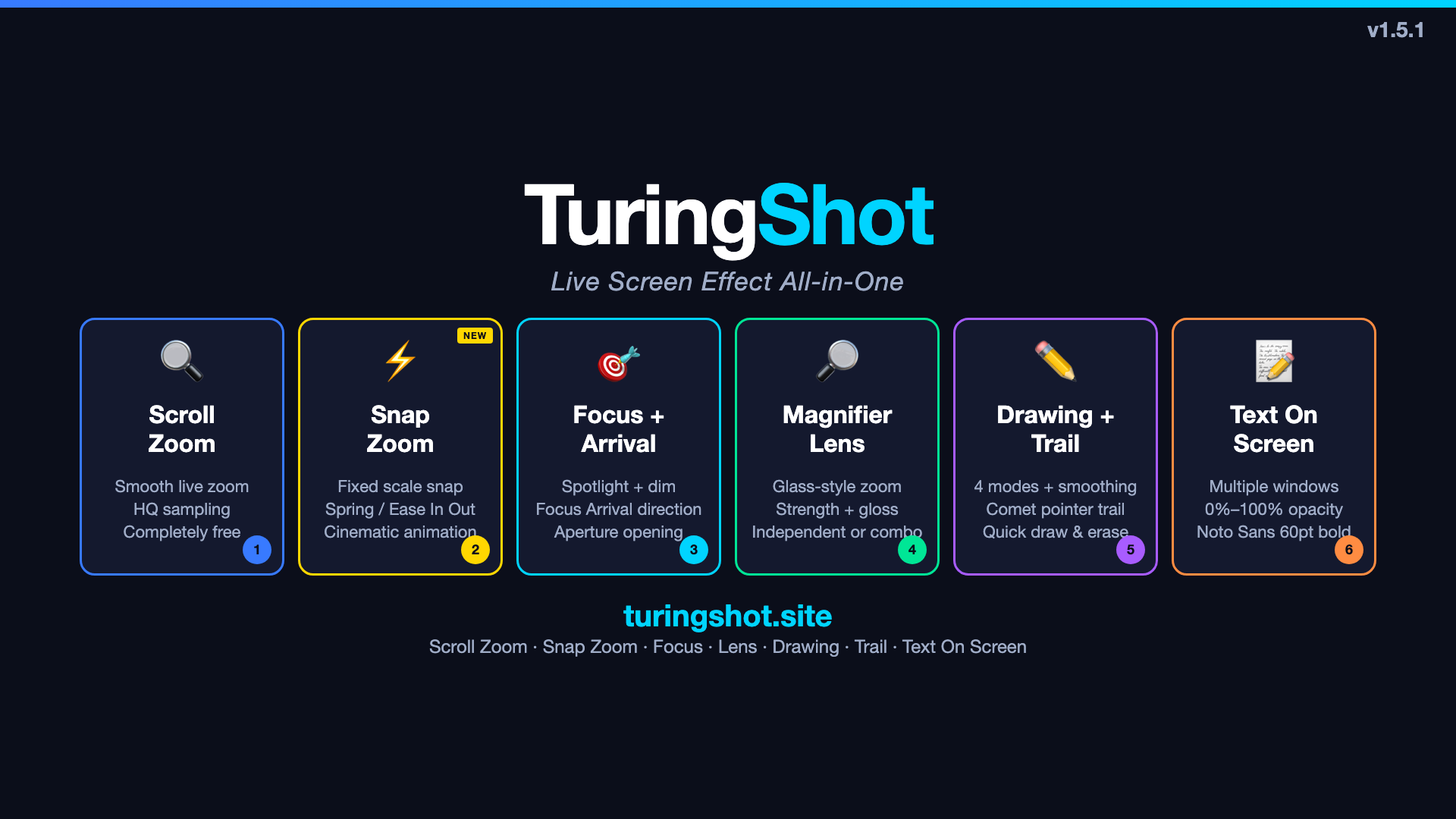
You are recording a Mac tutorial, and the step you are explaining is too small to read. TuringShot puts the zoom, the spotlight, the drawing, and the keystroke callout on the live screen while the recorder is already running, so the take captures the finished explanation instead of leaving you to rebuild every zoom and label in an editor afterwards. This guide covers every effect in TuringShot 1.5.14 (Build 46), the exact free tier, and the workflow to run during a full take.
TL;DR
TuringShot 1.5.14 (Build 46) is a macOS live screen-effects app for people who record, teach, and present on a Mac screen. Live Screen Zoom and Snap Zoom are free. Premium adds Focus Highlight, Magnifier Lens, Pointer Trail, Screen Drawing, Text On Screen, Key Display, and impact effects; the annual plan includes a 2-week free trial, and a lifetime purchase is also available. TuringShot does not record video — it renders the effects on the live screen, and the recording or meeting app you already use captures them. Requires macOS 13 or later on Apple silicon or Intel.
Recording a Mac tutorial today? Install TuringShot, start your own recorder, and zoom live on the first take. Free Live Screen Zoom and Snap Zoom; the Premium annual plan starts with a 2-week free trial.
Get TuringShot on the Mac App Store1Live Screen Zoom Free
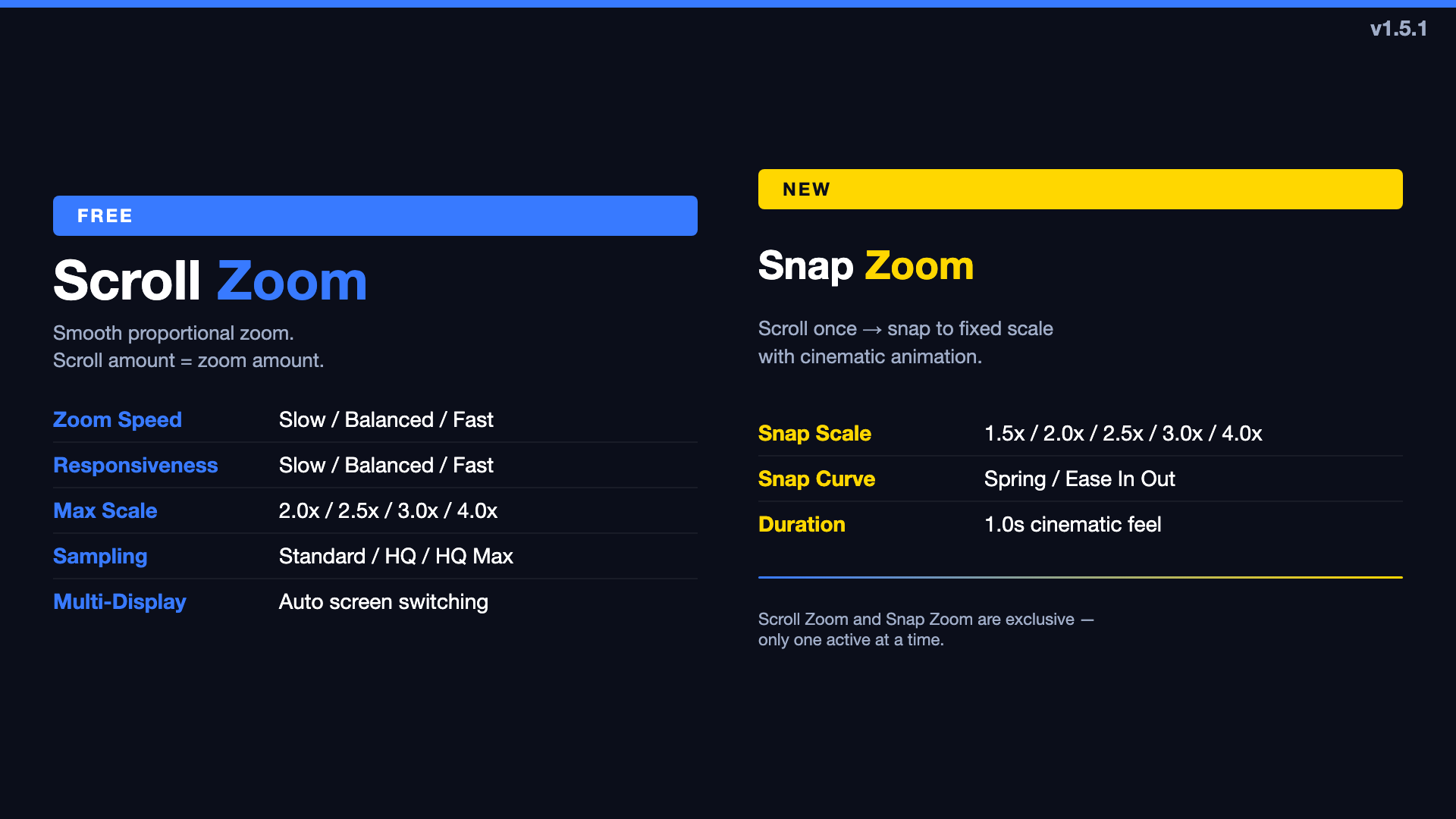
Hold the interaction shortcut — Ctrl+A by default — and turn the mouse wheel to zoom the live screen around the pointer. The zoomed view follows the cursor across apps and displays, and because it is the real screen that is magnified, your recorder captures exactly the framing you see.
- Free in every install, with no time limit
- Tune sensitivity, maximum scale (2x to 4x), transition speed, and responsiveness
- Rendering quality: Standard, HQ, or HQ Max
- Follows the display the cursor is on, including Retina and scale changes
- The shortcut can be changed in TuringShot settings
2Snap Zoom Free
One scroll jumps straight to a fixed zoom level with a spring-eased transition, so a close-up looks deliberate instead of hand-tuned. First-run setup in 1.5.14 starts here, which means you can try live zoom before anything else is configured.
- Free, and the first effect enabled during setup
- Fixed levels from 1.5x to 4x; new installs start at 150%
- Spring and ease transition instead of a jump cut
- Useful when every take needs the same framing
3Focus Highlight Premium
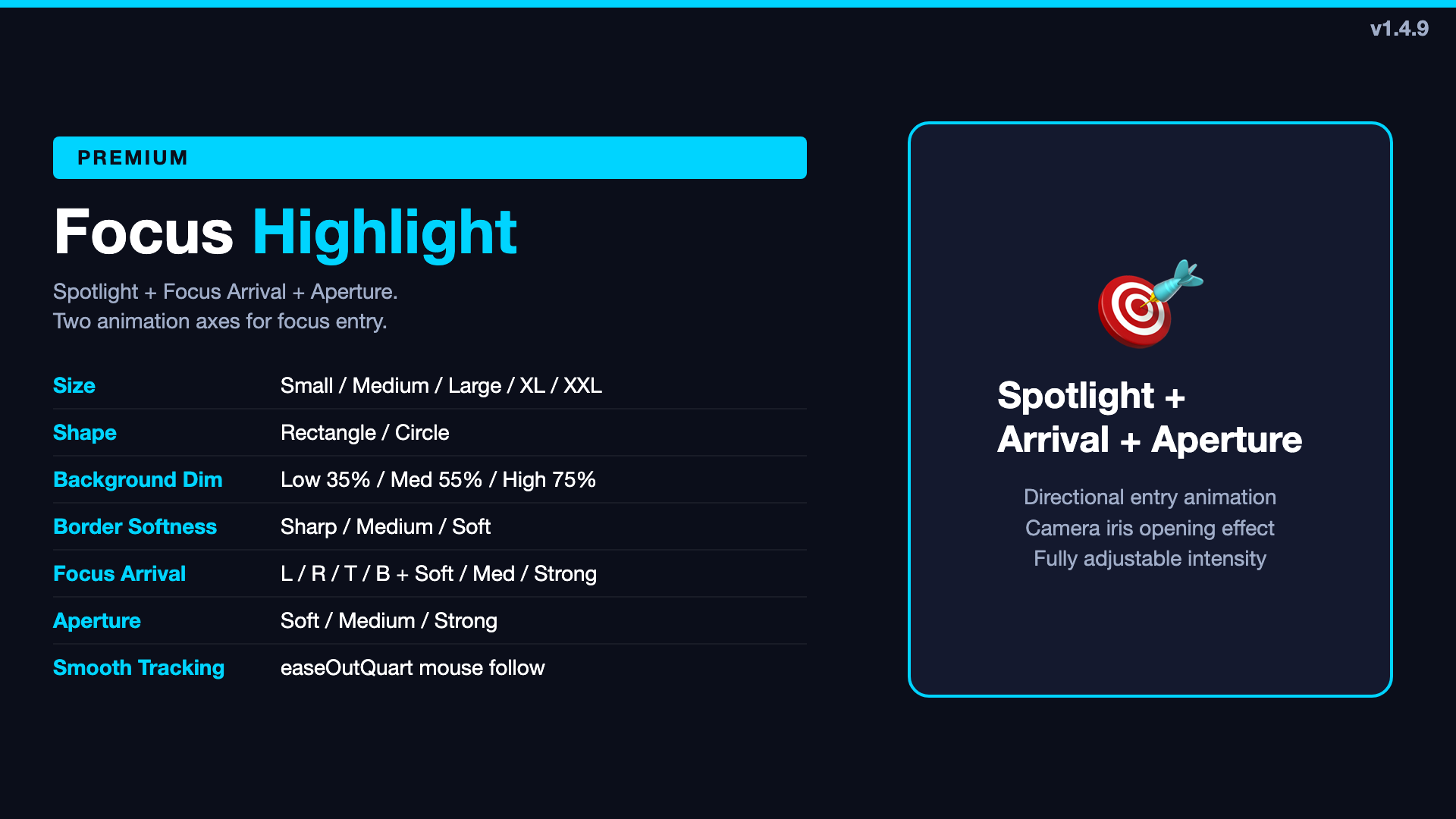
Keep a bright area around the pointer and dim the rest of the screen, so a viewer knows where to look before you finish the sentence.
- Circle or rectangle, five sizes
- Background dimming adjustable from 0 to 100
- Edge blur from Sharp to Very Soft
- Configurable arrival effect when the focus area appears
- Combines with Live Screen Zoom and Magnifier Lens
4Magnifier Lens Premium
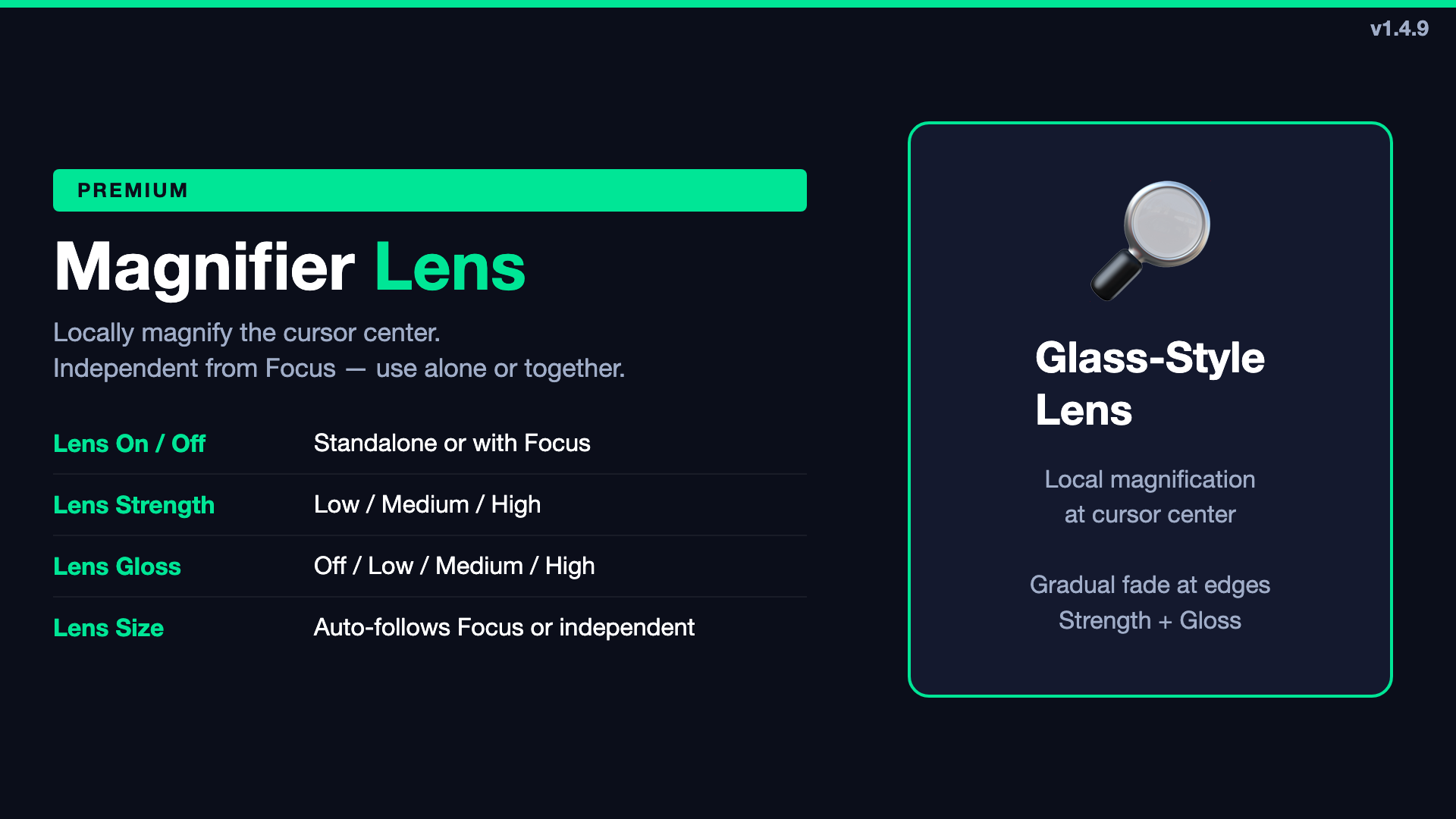
A separate effect from Focus Highlight. It magnifies only the area around the pointer like a real lens, with the magnification easing off toward the edges. Use it alone or on top of Focus.
- Adjustable lens strength
- Adjustable glass gloss for the lens surface
- Follows the focus size when used together with Focus Highlight
- Made for small text, icons, and dense interface details
5Pointer Trail Premium
A fading trail behind the cursor so a fast move between two controls stays readable in the recording instead of turning into a jump.
- Adjustable trail length and fade speed
- Adjustable thickness and glow
- The trail clears itself, so nothing has to be erased mid-take
6Screen Drawing Premium
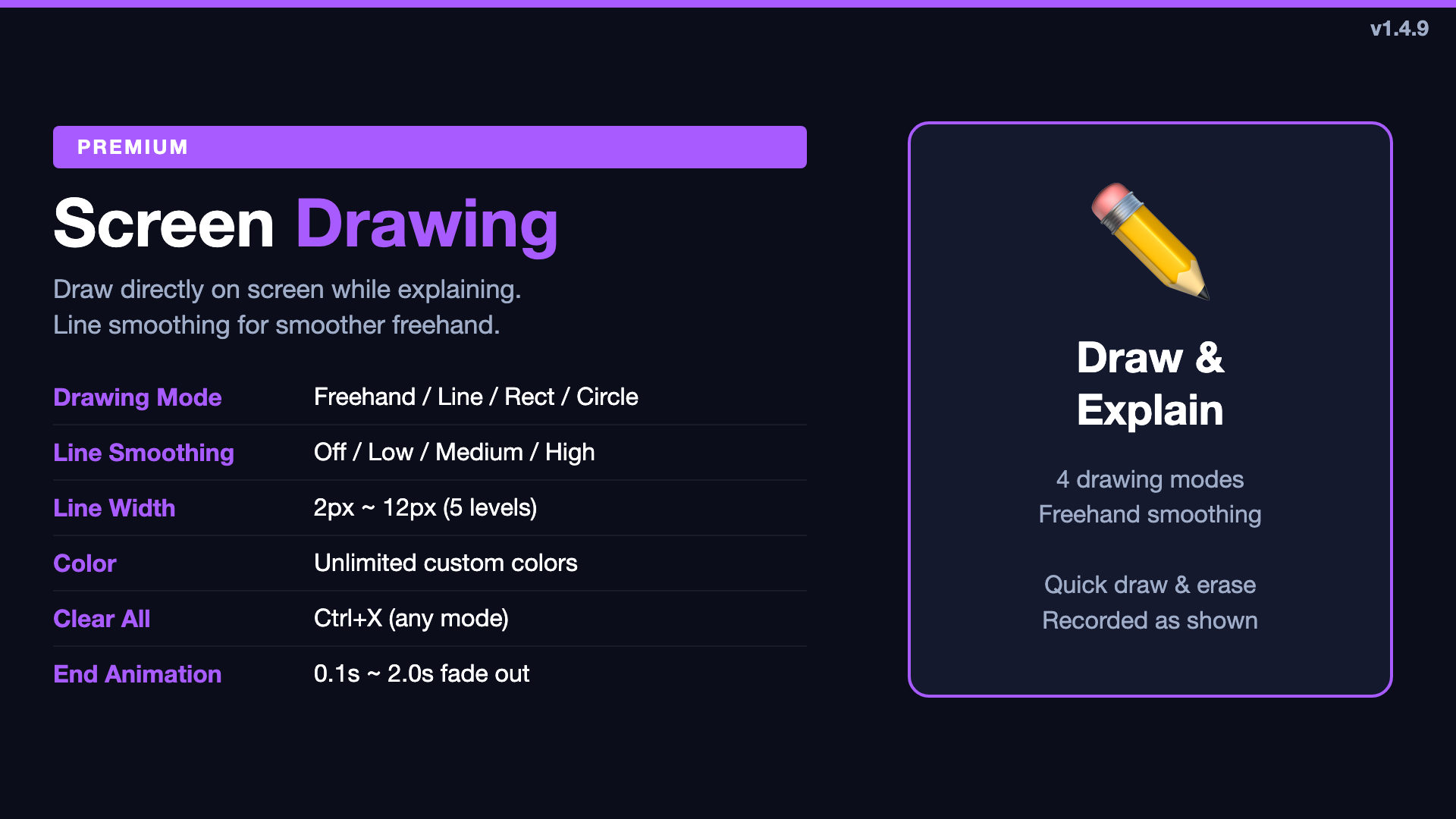
Draw straight onto the screen while you explain: mark a region, point at a button, then clear it and keep going. In the default combined mode, hold Ctrl+A and drag to draw.
- Freehand, straight line, rectangle, and circle
- Custom color, line width from 1 to 24 pt, and line smoothing
- Undo, redo, and clear all with Ctrl+X
- Separate mode defaults to Ctrl+D for drawing
- Marks stay while you are zoomed and appear in the recording
7Text On Screen Premium
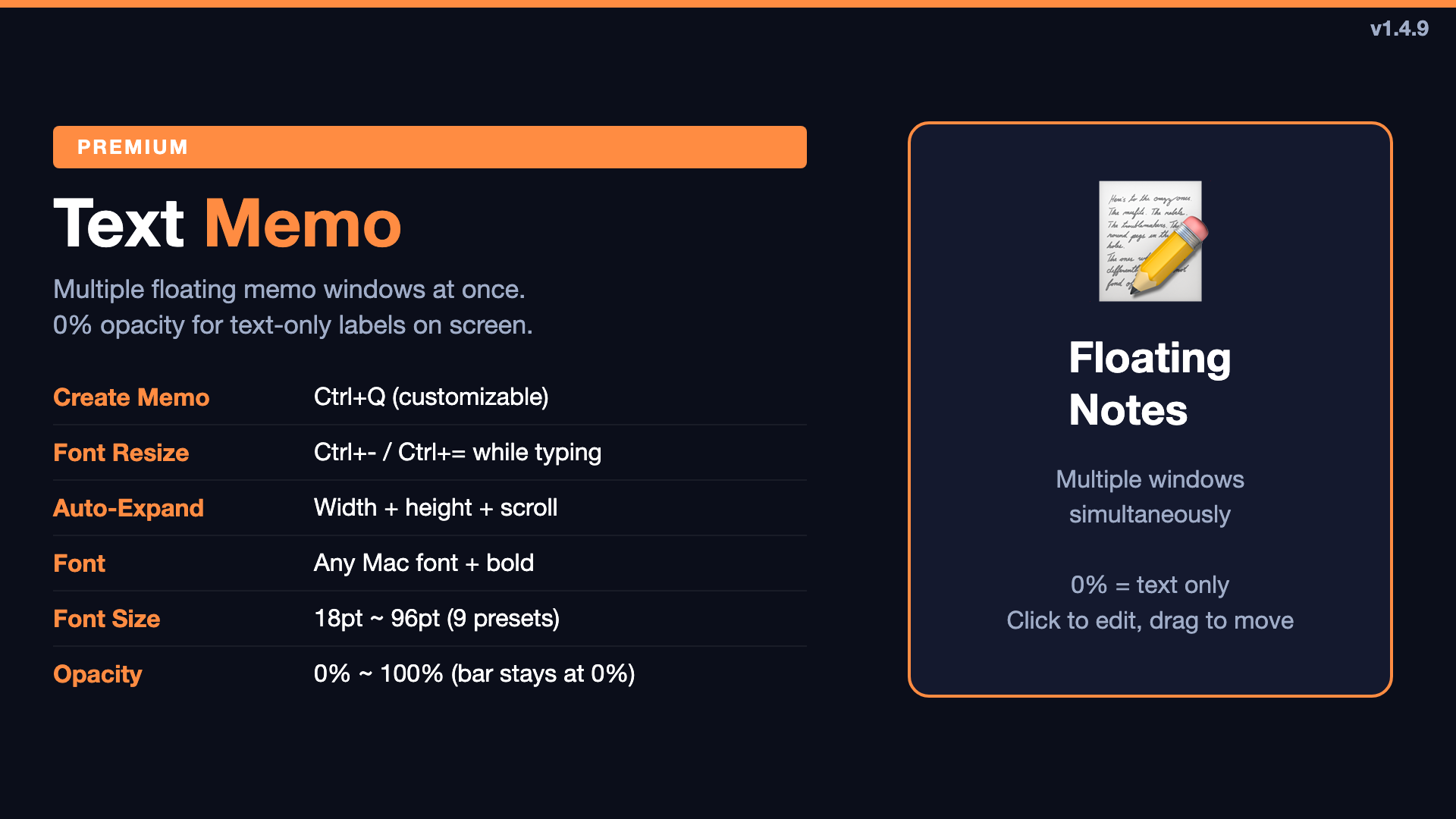
Floating text windows you place anywhere on screen. Create one with a shortcut (Ctrl+Q by default), type the label, and it stays until you close it — the caption you would otherwise add in post-production.
- Several memo windows open at the same time
- Font family, size from 14 to 96 pt, and weight
- Text color, background color, and background opacity
- The window expands as you type
- A shortcut changes the font size while you are still typing
8Key Display Premium
When the step you are teaching is a keyboard shortcut, say it once and let the keycaps repeat it. Key Display shows the shortcut you pressed on screen as clear keycaps, so viewers can read the keys instead of guessing what moved.
- Keycaps rendered on the live screen and captured by your recorder
- Position at the top or bottom of the screen
- Adjustable size and fade timing
- Shows intended shortcuts while ordinary typing stays hidden
9Impact and Aperture Effects Premium
Zoom and focus can enter with a directional impact or aperture animation, so a live transition reads as an intentional cut rather than a sudden change. It is the part of an edited video that usually costs the most time, happening while you record.
TuringShot Does Not Record Video
TuringShot does not record video. It has no capture file, no export, and no take management. It renders effects on the live screen, and the recording or meeting app you already run captures the screen — including those effects — exactly as displayed. Compatible destinations include QuickTime Player, the macOS built-in screen recording, OBS, ScreenFlow, and meeting apps such as Zoom, Google Meet, and Microsoft Teams.
That boundary is the point: keep your recorder for encoding, editing, and delivery, and use TuringShot for what the audience needs to see while you are still talking.
Setup and Permissions
Version 1.5.14 simplified first-run setup into a short, resumable sequence.
- Setup starts with free Snap Zoom, so live zoom works right away
- Screen Recording, Input Monitoring, and Accessibility can be requested inside the app; System Settings opens only when a step needs it
- Each overlay waits until its required permission is ready, so no effect starts half-configured
- Unfinished setup can be reopened at any time from the menu bar icon
Everyday Operation
- Menu bar app with GPU rendering, so it stays out of the way of your recorder
- Multi-monitor support: the overlay follows the display holding the cursor and handles Retina and scale changes
- Optional launch at login, so it is ready before the recorder is
- Capture frame rate and performance options for heavier scenes
- First-run onboarding plus an in-app Guide tab that is updated with each release
Free and Premium
- Free: Live Screen Zoom and Snap Zoom
- Premium: Focus Highlight, Magnifier Lens, Pointer Trail, Screen Drawing, Text On Screen, Key Display, and impact effects
- Annual plan: $2.99 per year, starting with a 2-week free trial
- Lifetime purchase: $9.99, paid once
- macOS 13 or later, Apple silicon and Intel; interface and guides in English and Korean
Recommended Workflow for a Mac Tutorial Take
- Start your own recorder. TuringShot waits in the menu bar; it does not record.
- Snap Zoom for the opening close-up, so every take starts at the same framing (free)
- Live Screen Zoom — hold Ctrl+A and scroll to follow the step you are explaining (free)
- Focus Highlight or Magnifier Lens on the single control that matters
- Screen Drawing or Text On Screen instead of a callout you would add later
- Key Display whenever the step is a keyboard shortcut
- Clear and continue — the recorder already captured the finished explanation
Every effect is a real overlay on the screen, so any app that captures your screen captures TuringShot exactly as displayed. The zoom pass you would normally rebuild in an editor is already in the take.
Frequently Asked Questions
What is TuringShot?
TuringShot is a macOS live screen-effects app. It renders zoom, focus highlight, magnifier lens, pointer trail, screen drawing, on-screen text, and key display directly on the live screen while you teach, present, or record. TuringShot does not record video; the recording or meeting app you already use captures the effects as displayed.
What is free in TuringShot and what does Premium add?
Live Screen Zoom and Snap Zoom are free. Premium adds Focus Highlight, Magnifier Lens, Pointer Trail, Screen Drawing, Text On Screen, Key Display, and impact effects. The annual plan is $2.99 per year and includes a 2-week free trial, and a lifetime purchase at $9.99 is also available.
Which macOS versions does TuringShot support?
TuringShot supports macOS 13 (Ventura) and later, on both Apple silicon and Intel Macs.
Does TuringShot work on Apple silicon?
Yes. TuringShot runs natively on Apple silicon and on Intel Macs, and renders its overlays on the GPU.
Can I customize the keyboard shortcuts?
Yes. The default interaction shortcut is Ctrl+A: hold it and use the mouse wheel to zoom, or hold it and drag to draw. In separate mode, drawing defaults to Ctrl+D, clear all is Ctrl+X, and an on-screen text memo is Ctrl+Q. Every shortcut can be changed in TuringShot settings.
Does TuringShot record the screen itself?
No. TuringShot does not record video. It renders effects on the live screen, and a compatible recording or meeting app captures them — for example QuickTime Player, the macOS built-in screen recording, OBS, ScreenFlow, or meeting apps such as Zoom, Google Meet, and Microsoft Teams.
What macOS permissions does TuringShot need?
Screen Recording for zoom, focus, and lens rendering, Input Monitoring for global shortcuts, and Accessibility for drawing and key display. In version 1.5.14 these can be requested inside the app, System Settings opens only when a step needs it, each overlay waits until its permission is ready, and unfinished setup can be reopened from the menu bar icon.
How does TuringShot fit into a Mac tutorial recording workflow?
Start your recorder as usual and leave TuringShot in the menu bar. Use Snap Zoom for a repeatable opening close-up, hold the interaction shortcut and scroll to follow the step you are explaining, add Focus Highlight or Magnifier Lens on the one control that matters, draw or place a text memo instead of adding a callout later, and turn on Key Display when the step is a shortcut. Because the effects are real overlays on the screen, the recorder captures the finished explanation in the same take.
Does TuringShot support Korean?
Yes. The app interface, the in-app Guide, first-run setup, and this website are available in English and Korean.
Where can I download TuringShot?
TuringShot is on the Mac App Store — open the TuringShot App Store page, or search "TuringShot" in the App Store.
TuringShot 1.5.14 (Build 46) for macOS 13 or later
Record your next Mac tutorial with the zoom already in the take. Free: Live Screen Zoom and Snap Zoom. Premium: Focus Highlight, Magnifier Lens, Pointer Trail, Screen Drawing, Text On Screen, Key Display, and impact effects — $2.99/year with a 2-week free trial, or a $9.99 lifetime purchase.
Download on Mac App Store