One teaching problem
Make the detail readable while the explanation is happening
Live classes have no edit pass, and recorded lessons should not need a second pass just to rebuild every zoom and callout.
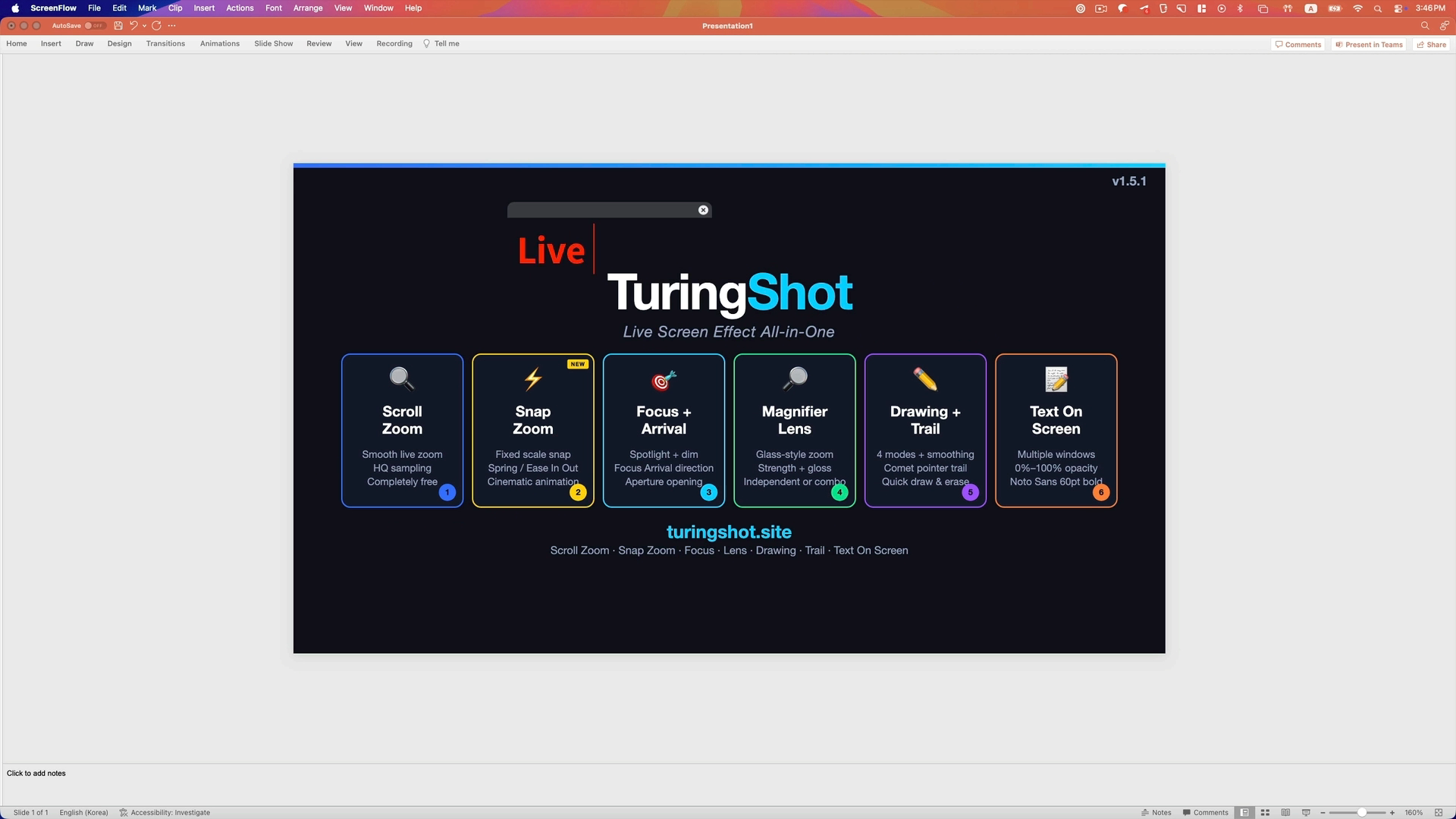
- Zoom on the beat. By default, hold Ctrl + A and use the wheel for smooth live zoom, or use Snap Zoom for a fixed, repeatable close-up.
- Isolate one small detail. Focus Highlight dims the surrounding screen; Magnifier Lens enlarges only the pointer area.
- Mark the exact element. Draw lines, rectangles, and circles on screen, then clear them immediately.
- Show shortcuts visibly. Key Display renders intentional key combinations as keycaps during a workflow.
Built for explanation
Keep your teaching stack. Add the layer students need.
Works with your recorder
TuringShot does not record video. It renders effects on screen, so OBS, ScreenFlow, QuickTime, or another recorder captures them.
Works in live classes
Share the affected screen in your meeting app and learners see the zoom, spotlight, drawing, and on-screen text while you speak.
Starts free
Live Screen Zoom and Snap Zoom are free. The annual Premium plan adds the complete emphasis toolkit with a two-week trial.
Small UI, full context
Magnify one control without moving the whole lesson
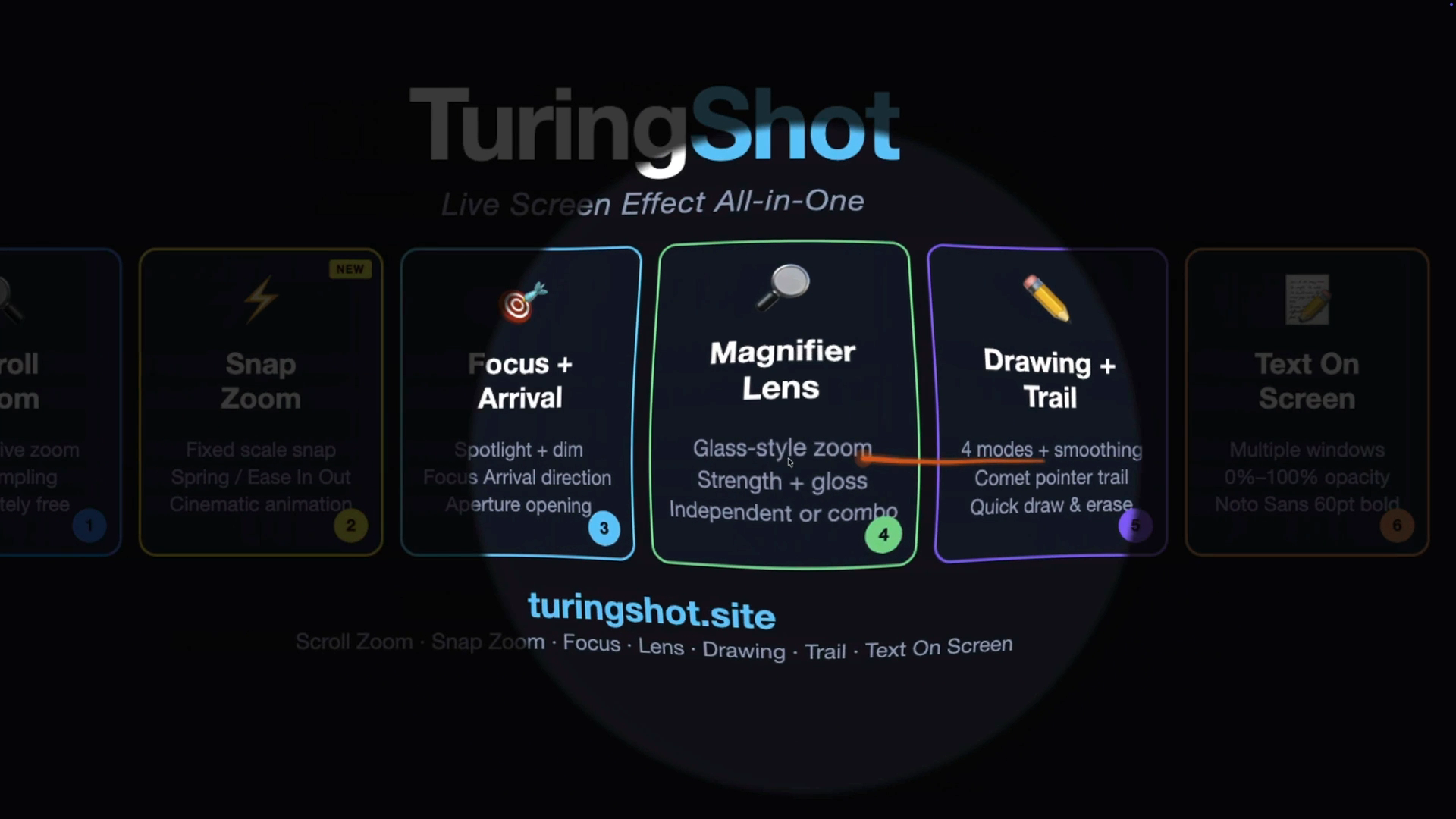
Magnifier Lens enlarges the area around the pointer while the rest of the interface stays visible. Use it for a tiny icon, a single line of code, or a value in a dense settings panel.
When the point needs to remain visible, Text On Screen adds a styled label and Screen Drawing circles the target.
Questions
Before your next lesson
Does TuringShot record my lesson?
No. It is a live screen-effects utility. Keep using your recorder or meeting app; it captures the effects as part of the screen.
What permissions does it need?
Screen Recording, Input Monitoring, and Accessibility. The app requests each permission during setup and can resume an unfinished setup from the menu bar.
What is free?
Live Screen Zoom and Snap Zoom are free. Focus Highlight, Magnifier Lens, Pointer Trail, Screen Drawing, Text On Screen, Key Display, and impact effects are Premium.
Which Macs are supported?
macOS 13 or later on Apple silicon and Intel Macs. The interface and guides are available in English and Korean.
Explore by job
More ways to explain a Mac screen
Try the complete teaching toolkit for two weeks
The annual Premium plan unlocks focus, magnifier, drawing, text, trail, key display, and impact effects.
Live Screen Zoom and Snap Zoom remain free.